Weight with definition.
Low Boost and Low Atten have different curve shapes. Use both to build bass foundation while reducing the region above it. The shared selector offers 20, 30, 60 and 100 Hz.
TOOLS THAT MOVE SOUND FORWARD.
VINTAGE 2 / PASSIVE PROGRAM EQUALIZER
Build low-end foundation. Open the top. Smooth a bright mix. Shape your tone with broad passive-style curves and a digital display that moves with your hands.
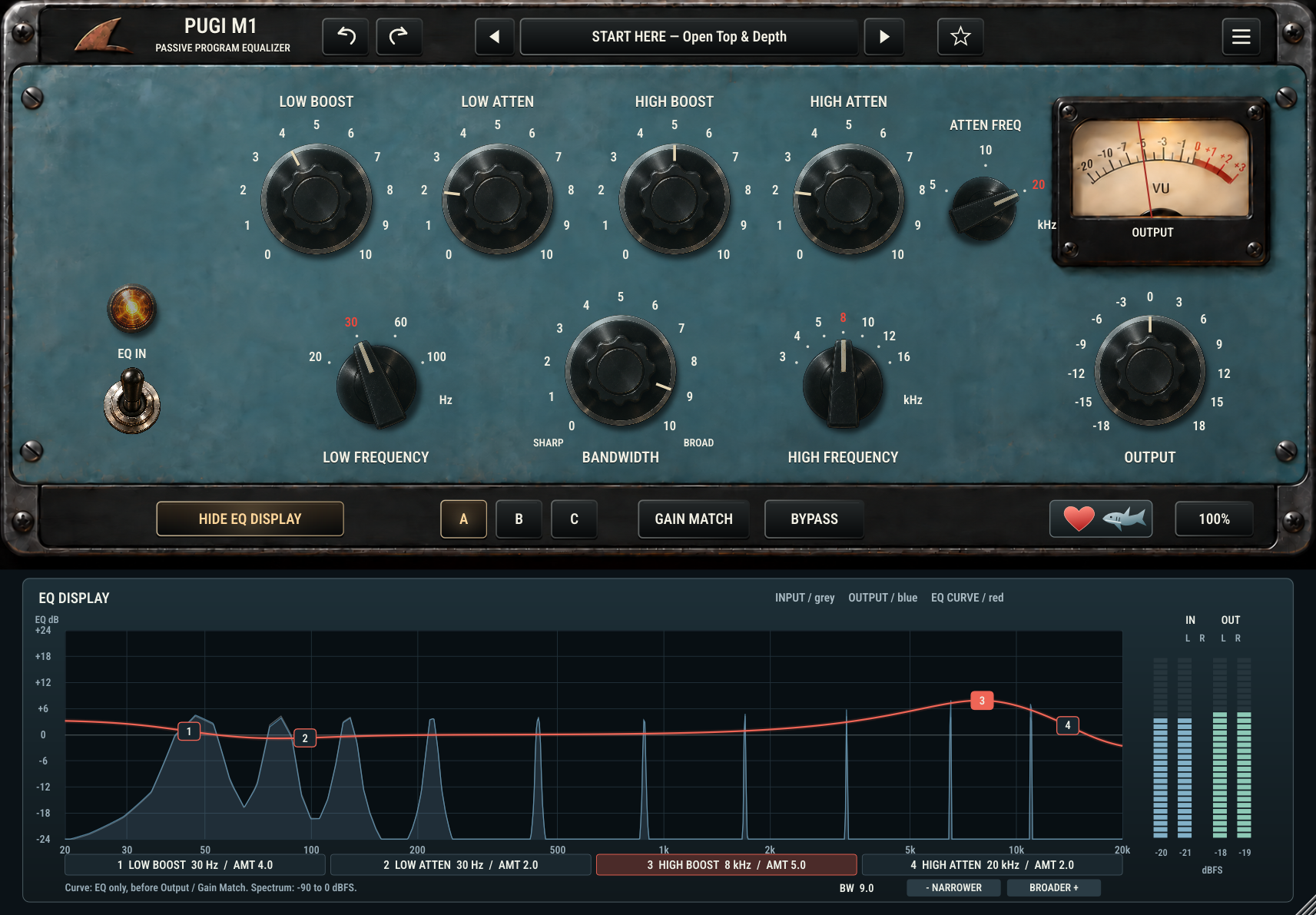
Independent boost & attenuation · Interactive EQ display · 100 presets · A/B/C
Low Boost and Low Atten have different curve shapes. Use both to build bass foundation while reducing the region above it. The shared selector offers 20, 30, 60 and 100 Hz.
Choose a high-boost frequency from 3 to 16 kHz, then move Bandwidth from sharp to broad. Independent high attenuation shapes the upper range at 5, 10 or 20 kHz.
Open the EQ display below the analog panel. Drag four numbered nodes or turn the hardware controls: both update the same parameters. Grey input and blue output spectra sit behind the red EQ curve.
Audition 100 presets across instruments, mix bus and mastering, plus five Shark-authored themed collections. Single-click to audition and double-click to load and close. Compare with A/B/C, Undo/Redo and Gain Match.
The six-page manual covers every control, graph gestures, the low-end boost-and-attenuation technique, presets and troubleshooting.
QUESTIONS, ANSWERED
Tone shaping, linked controls, presets and everyday workflow.
Pugi M1 is a passive-style program equalizer for broad tonal shaping. Use it to add low-end foundation, open the top end or soften brightness on tracks, buses and full mixes.
Low Boost and Low Atten use different curve shapes, so applying both does not simply cancel. Start at 60 Hz with both amounts at 4, then adjust by ear: the bass rises while the region above it dips. The 0-10 scales are amounts, not decibels.
Yes. Press SHOW EQ DISPLAY and drag one of the four numbered nodes. Vertical movement changes amount; horizontal movement selects frequency, snapping to the same choices as the hardware knobs. Both low bands share Low Frequency. Knobs and graph update together.
Red is the configured EQ response; grey is the input spectrum and blue is the output spectrum. The red curve excludes Output and Gain Match. The spectra show actual audio, with a separate -90 to 0 dBFS scale. The four meters show input/output left/right sample peaks.
EQ OUT and Bypass keep the graph editable and show EDIT PREVIEW. This previews your configured tone without re-enabling processing. Turn EQ IN on and Bypass off to hear those settings.
Click the preset bar, then search or filter by category. Single-click auditions while the browser stays open; double-click loads and closes. The arrows step through factory presets, and the star marks favorites. Init - Clean Start restores neutral processing. The five Guest collections are Shark-authored themed banks, not outside engineer endorsements.
EQ IN controls the EQ filters; Output remains active when EQ is off. Bypass bypasses the whole processor. Gain Match slowly compensates input/output power differences to help compare tone at similar levels; allow a few seconds to settle.
A/B/C provides three parameter snapshots. Undo/Redo supports parameter edits and preset loads. The browser lets you save, rename and delete user presets; factory presets are protected. DAW sessions recall parameters, comparison slots, preset title, display visibility and menu-selected zoom.
The current engine reports zero latency and supports mono and stereo with linked controls. It has no output limiter. Leave headroom when boosting and reduce Output if needed. The VU-style meter is not a true-peak meter.
Pugi M1 is an original Shark Plugs design inspired by passive program EQ behavior; it is not presented as a circuit-identical hardware model. Visit sharkplugs.com for current product availability and downloads. This documentation describes version 0.1.7; it does not establish installer availability or platform certification.